Ivanti Neurons for Enterprise Service Management Zero Trust to Ticket Integration
- Overview
- Support Statement
- Limitations
- Solution Overview
- Advanced Zero Trust Capabilities
- What is Ivanti Neurons for Enterprise Service Management?
- Integration Architecture
- Solution Configuration in Ivanti and Data Security Edition Zero Trust
- Prerequisites
- Configuration in Ivanti Neurons for Enterprise Service Management
- Configuration Steps on Eyeglass Virtual Machine
- High Level steps
- Configuration Step by Step
- Configure the Service start and python integration files
- Configure the python packages and customize the ivanti integration python code
- Configure Defender Zero Trust Webhooks
- How to test the Integration with ivanti
- Ivanti Neurons for Enterprise Service Management SecOps administrators Integration Experience
Overview
Ivanti Neurons for Enterprise Service Management is an ITSM platform. This integration will create tickets based Data Security Edition detections.
Support Statement
-
NOTE: This documentation is provided "as is" without support for 3rd party software. The level of support for this integration guide is best effort without any SLA on response time. No 3rd party product support can be provided by Superna directly. 3rd party components require support contracts
Limitations
- None
Solution Overview
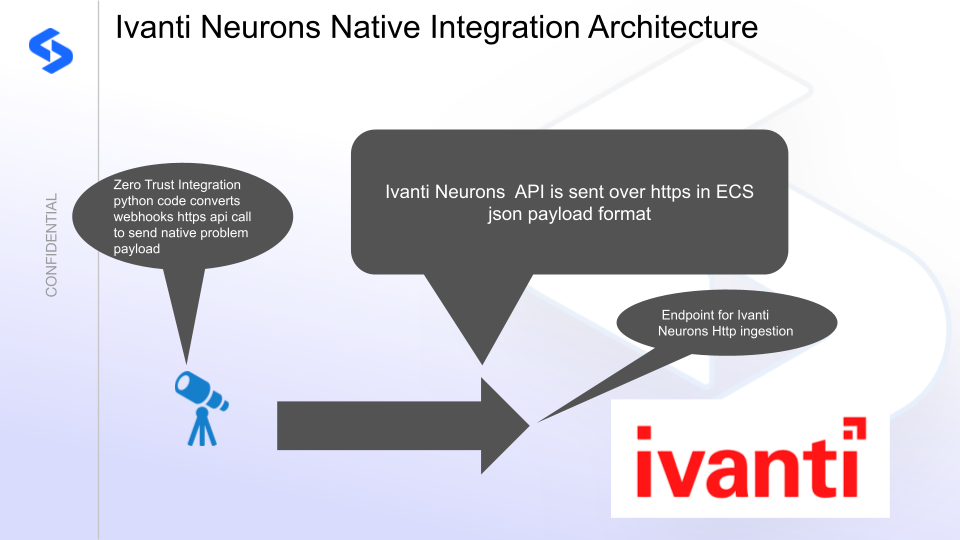
Superna Zero Trust API receives webhook alerts and parses the key data into a HTTPS API payload events that are sent to Ivanti Neurons endpoint url. Ivanti Neurons for Enterprise Service Management is a modular architecture that provides real-time visibility of your IT infrastructure, which you can use for threat detection and prioritization.
Advanced Zero Trust Capabilities
- Webhook to native HTTPS collector API case creation
- Supports custom ticket category creation of type problem
- Updates to state of an problem will apply a journal note to an existing ticket using the Superna event ID to locate existing case that matches the event in Data Security Edition.
What is Ivanti Neurons for Enterprise Service Management?
Integration Architecture
Solution Configuration in Ivanti and Data Security Edition Zero Trust
Prerequisites
- Installed Security Edition
- Eyeglass OS appliance version 15.5
- cat /etc/os-release
- License key for the Zero Trust API
- Ivanti Neurons for Enterprise Service Management
- Service account for creating tickets
Configuration in Ivanti Neurons for Enterprise Service Management
The steps below create the integration,.
- Login to the console
- Open settings panel
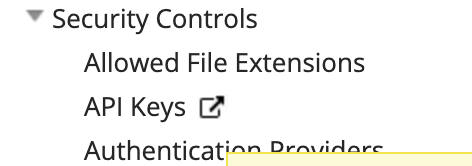
- Under Security Controls
- Select API Keys
- Add key and fill in as per below
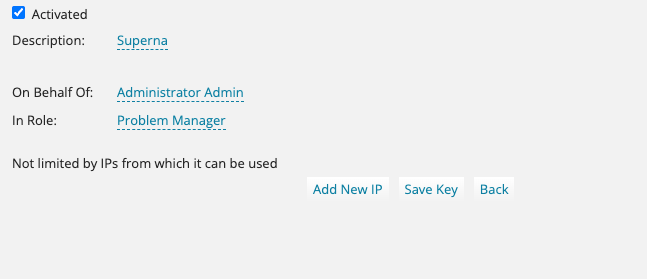
- Record the Reference ID.
- Record the instance URL
- Both values will be used to update the integration code below.
Configuration Steps on Eyeglass Virtual Machine
High Level steps
- Create python location to run the application on the Eyeglass vm
- Create python main application script
- Create linux systemd service and set to auto start
- Create Zero Trust configuration in Data Security Edition
- Update the main script to customize with Ivanti python code
- Test the script is running as a service
- Create a test event in Defender to validate the alerts appear as indexed parsed events in Ivanti Neurons for Enterprise Service Management
Configuration Step by Step
Configure the Service start and python integration files
-
Login to the Eyeglass VM via SSH as the admin userssh admin@<your-vm-ip># Become rootsudo -s
mkdir -p /opt/superna/cgi-bin
chown -R sca:users /opt/superna/cgi-binchmod -R u+rwX,g+rwX /opt/superna/cgi-bin# become SCA user
sudo -u sca -s
cd /opt/superna/cgi-bin
python3 -m venv venv- ivanti
source venv- ivanti/bin/activate
pip install flask requests
deactivate
# Create required filestouch ivanti.pytouch ivanti.sh# Make scripts executablechmod +x ivanti.pychmod +x ivanti.sh# Create the ivanti.sh launch scriptnano /opt/superna/cgi-bin/ ivanti.sh# past contents below into the file
#!/bin/bashexport PATH="/opt/.pyenv/bin:$PATH"source /opt/superna/cgi-bin/venv- ivanti/bin/activateexec python /opt/superna/cgi-bin/ ivanti.py# Make the launch script executablechmod +x /opt/superna/cgi-bin/ ivanti.sh## exit from being SCA user
exit
whoami
### make sure you are the root user again for these steps
# Create the systemd service unit filenano /etc/systemd/system/ ivanti.service#Paste the contents below into the file
[Unit]Description=Webhook listener for Zero Trust API translations and integrationsAfter=network.target[Service]Type=simpleUser=scaGroup=usersWorkingDirectory=/opt/superna/cgi-binExecStart=/bin/bash /opt/superna/cgi-bin/ ivanti.shRestart=alwaysRestartSec=5[Install]WantedBy=multi-user.target# Reload systemd to recognize the new servicesystemctl daemon-reload# Enable the service to start on boot (do NOT start it yet)systemctl enable ivanti
Configure the python packages and customize the ivanti integration python code
- Customize the application code by downloading the python code from this link to download (right click save as)
- Open the python template file in a text editor. NOTE: make sure to only replace the values and do not delete any of the commas
- Locate this section in the file and replace the yellow sections to match your ivanti endpoint URL. The endpoint url is unique and can be copied from the console into the variable below.
- Update the code to cover the domain name for your instance access url, username service account email, for API Key use the password of the service account user and
- IVANTI_TENANT_URL = "https://xxxxx/".rstrip("/")IVANTI_REST_API_KEY = "yyyyyy"
- nano /opt/superna/cgi-bin/ivanti.py
- Open the file locally in Windows OS notepad and use control-A or select all the text in the python template
- Paste the clipboard into the ssh terminal session with the open nano editor file
- save the file
- press control+x
- Answer yes to save and exit the nano editor
- Start the service and verify it is running
- systemctl start ivanti.py
- systemctl status -l ivanti.py
- Verify the service is started successfully and returns "active and running".
- If the service does not start do not proceed and double check the steps above are completed.
Configure Defender Zero Trust Webhooks
- The next step creates an Zero Trust Webhook URL.
- Configure Zero Trust endpoint in Ransomware Defender Zero Trust tab.
- Recommended Configuration: Only Critical and Major events and only the webhooks that set lockout or delayed lockout. Customers can customize based on specific requirements. The goal is to send findings versus a list of alarms that do not pinpoint a security incident.
- The endpoint url above will use localhost and will send Webhooks to the application service listening on port 5000. URL to use in the configuration
- http://localhost:5000/webhook
- Add the Content-Type header with value of application/json and the content-encoding with value gzip as shown above to complete the webhook configuration.
- Click save to commit the configuration.
- Click save on the main Webhook configuration page
- Recommended Configuration: Only Critical and Major events and only the webhooks that set lockout or delayed lockout. Customers can customize based on specific requirements. The goal is to send findings versus a list of alarms that do not pinpoint a security incident.
- Configure Zero Trust endpoint in Ransomware Defender Zero Trust tab.
- Test the configuration is working following the next section
How to test the Integration with ivanti
- To test the integration follow these steps
- Prerequisites In ivanti and Eyeglass:
- Get the ip address of the Eyeglass vm
- download this curl command template and open with a text editor and locate the ip address of eyeglass at the very end of text and replace the ip address with the IP address of your eyeglass vm.
- Copy all the text in the text editor
- ssh to the eyeglass vm as the admin user
- Paste the entire cli command text to the ssh prompt to send sample data to the running Zero Trust application. This will send test data directly to the application to be processed and sent to ivanti SIEM Integration service that is running on the Eyeglass VM.
- The output of a successfully processed webhook test will return this text in the ssh terminal
- done sending event to ivanti and check for http 200 and success count in response
- How to review the process logs from the web application
- sudo -s
- journalctl -f -u ivanti
- This allows you to view the logs generated by the application.
- To log to a file and review with nano showing only the most recent 250 lines.
- journalctl -f -n 250 -u invanti > /tmp/ ivanti.log
- nano /tmp/invanti.log
- In the log below the response code from the ivanti api call should show http 200 status code and successCount 1 to indicate the Finding was successfully created.
- You can also view ivanti.log for specific error messages.
- Done
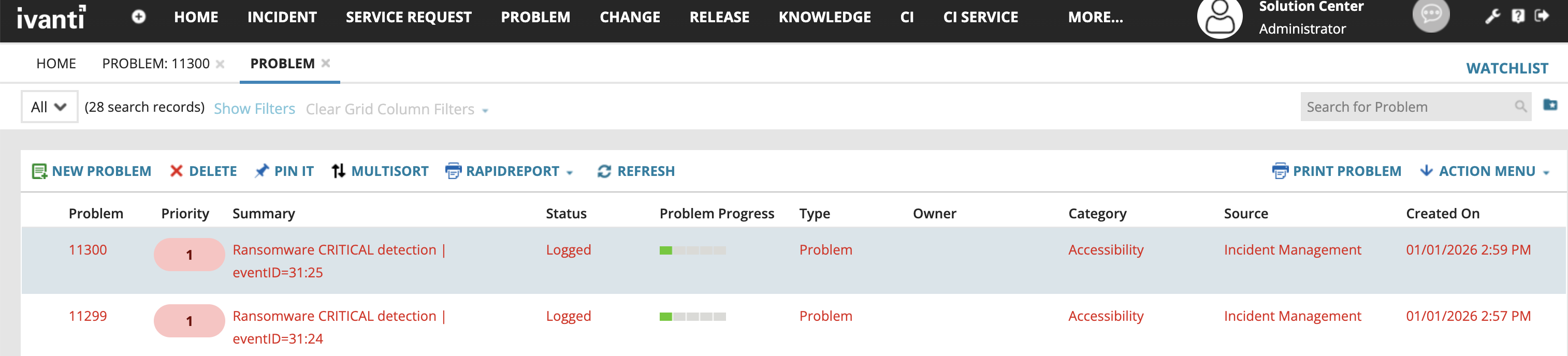
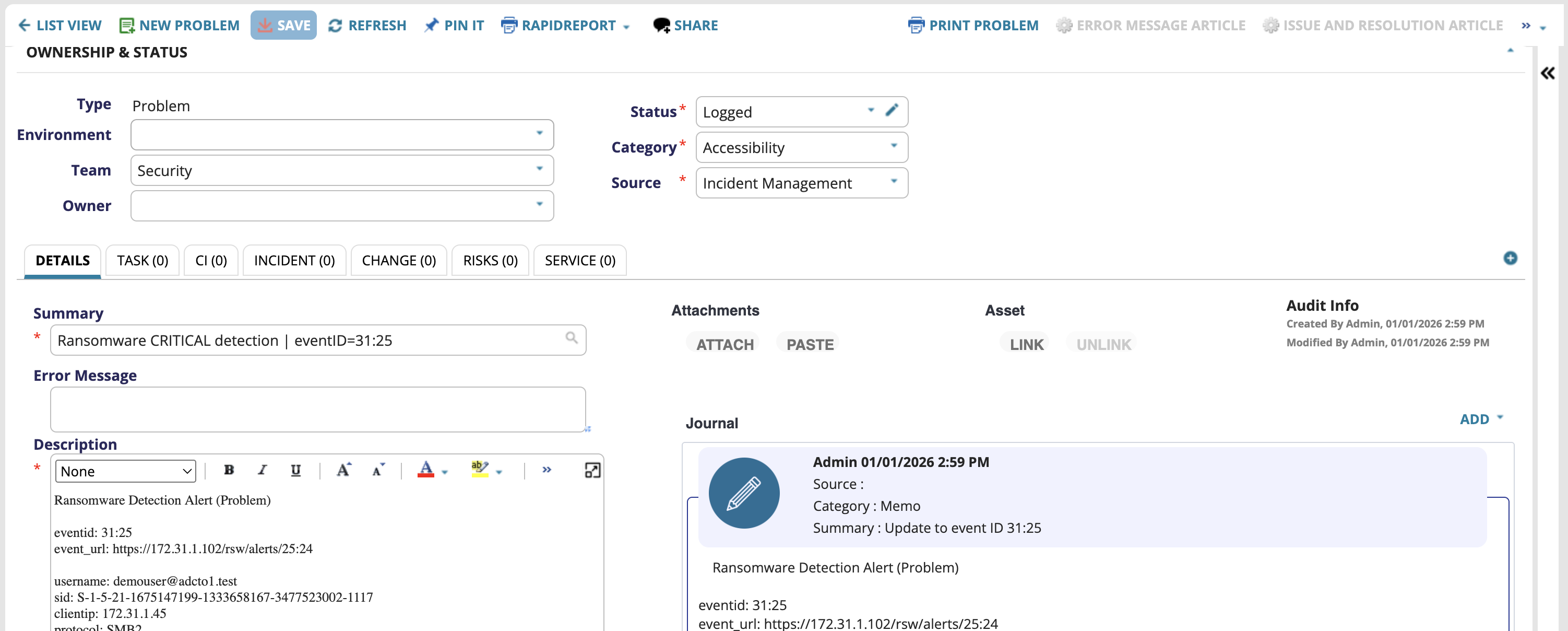
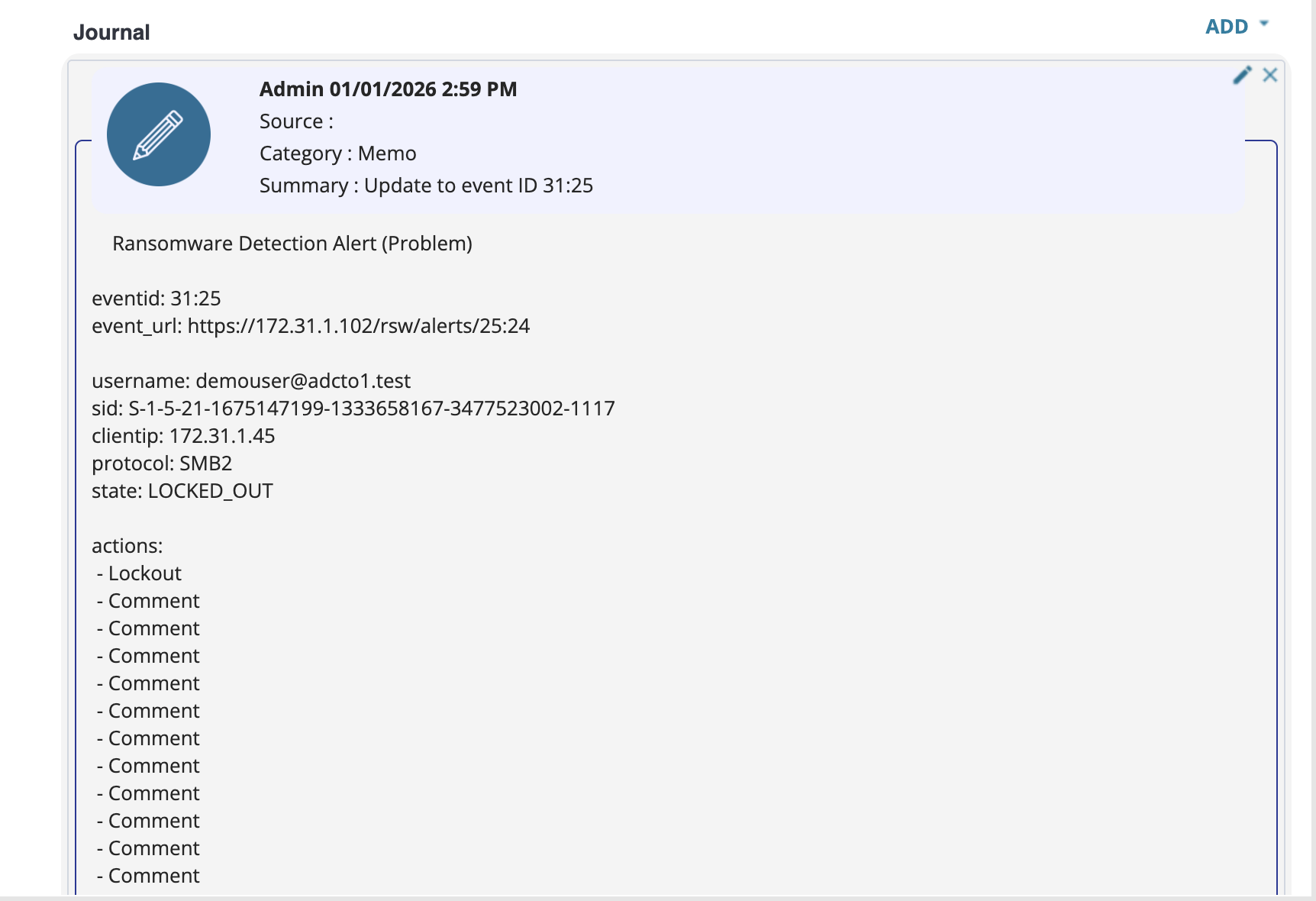
Ivanti Neurons for Enterprise Service Management SecOps administrators Integration Experience
Example tickets created by the integration.