Fortinet Fortigate Ransomware NGFW Host Isolation Integration
- Overview
- Support Statement
- Limitations
- Solution Overview
- What is FortiGate?
- Integration Architecture
- Solution Configuration in FortiGate and Defender Zero Trust
- Prerequisites
- Features
- Configuration in FortiGate
- Configuration Steps on Eyeglass Virtual Machine
- High Level steps
- Configuration Step by Step
- Configure Defender Zero Trust Webhooks
- How to test the Integration with FortiGate
- FortiGate SecOps administrators Integration Experience
Overview
Customers using FortiGate can leverage this integration to issue ip ban using Incoming Webhook Quarantine feature. This ensures a comprimised host cannot continue to attack other infrastructure after a data layer lockout by Data Security Edition.
Support Statement
-
NOTE: This documentation is provided "as is" without support for 3rd party software. The level of support for this integration guide is best effort without any SLA on response time. No 3rd party product support can be provided by Superna directly. 3rd party components require support contracts
Limitations
- Does not lookup endpoint ID to set client ip to endpoint id or end user id to set the end user id. These entities would need to already exist or be created
Solution Overview
Superna Data Security Edition Zero Trust API is the cornerstone technology used to integrate with SIEM and SOAR platforms. This integration offers storage threat responses to cascade to Fortinet FortiGate to isolate hosts and protect the infrastructure. By cascading storage protection with network firewall protection and lower the response time to contain a ransomware threat translates to better cyber resilience.
What is FortiGate?
FortiGate is a Next-Generation Firewall (NGFW) developed by Fortinet. It acts as a comprehensive security and networking gateway that protects organizational networks from cyberthreats while routing and optimizing internet traffic.
Integration Architecture
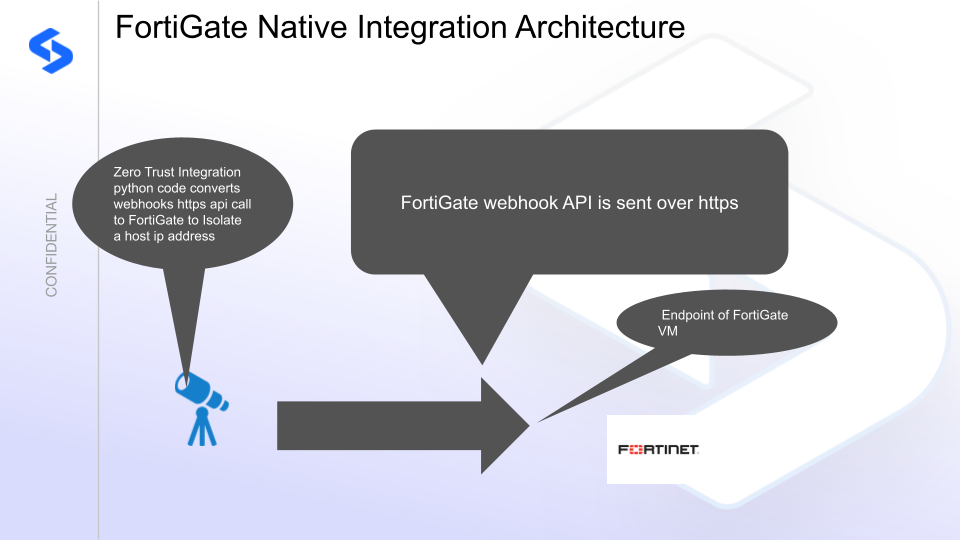
Solution Configuration in FortiGate and Defender Zero Trust
Prerequisites
- Installed Data Security Edition subscription product
- Eyeglass OS appliance version 15.5
- cat /etc/os-release
- License key for the Zero Trust API
- FortiGate on premise
Features
- Sends native Incident api calls and severity mapped from Superna to FortiGate
- Supports Webhook API key integration with Webhook Automations
Configuration in FortiGate
- Login to the console
- This guide will be followed to create an api key and enable the webhook Quarantine ip ban policy.
- Create an API Key and admin profle
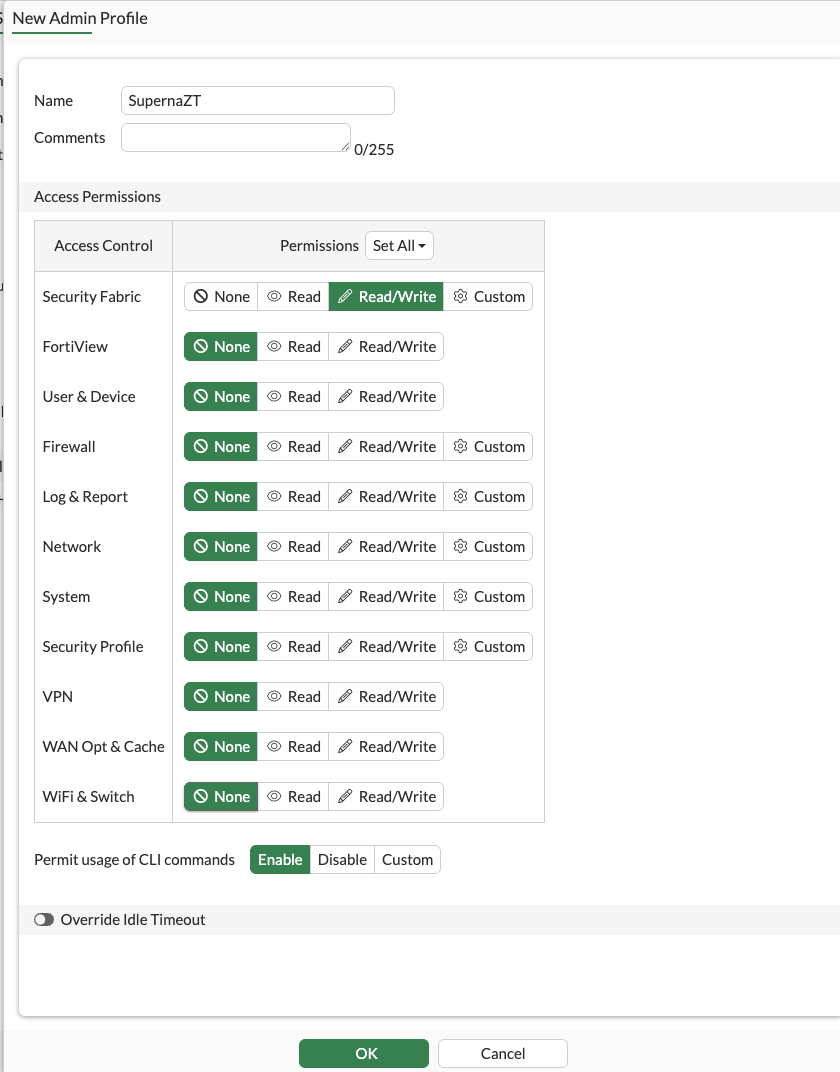

- Save the API key for the integration installation.
- Enable the Webhook

- Edit the automation switch and switch the action to IP Ban

- Enter the api key into the webhook configuration by editing the Incoming Webhook Call

- Save the configuration
- Done
- Add the quarantine widget to the dashboard

Configuration Steps on Eyeglass Virtual Machine
High Level steps
- Download the Feature pak from the Superna Support site
- Copy the run file to the vm with winscp or other tool supporting scp
- login over ssh and chmod 777 <feature pak filename>.run
- Execute the run file ./<filename>.run
- in the Text User Input enter
- FortiGate ip address or hostname
- API key created in the above steps
- Severity of event to trigger an IP Ban, default is Critical
Configuration Step by Step
- Login to the eyeglass VM as admin user
- Follow the steps below
- From the support site download the integration run file
- scp or winscp copy the integration file to the eyeglass vm
- Login as admin over ssh
- sudo -s #enter admin password)
- chmod 777 /path to run file
- ./<integrationname>.run
- Input the configuration values into the TUI (Text User Interface)
- Press V to validate the inputs
- Press I to install
- The installation process should complete, review any errors for support. The last question asks to start the service answer yes
- Complete
Configure Defender Zero Trust Webhooks
- The next step creates an Zero Trust Webhook URL.
- Configure Zero Trust endpoint in Ransomware Defender Zero Trust tab.
- Recommended Configuration: Only Critical and Major events and only the webhooks that set lockout or delayed lockout. Customers can customize based on specific requirements. The goal is to send findings versus a list of alarms that do not pinpoint a security incident.
- Configure Zero Trust endpoint in Ransomware Defender Zero Trust tab.
- Test the configuration is working following the next section
How to test the Integration with FortiGate
- To test the integration follow these steps
- Using 2.14 or later use the test webhook button, you may need to edit the default payload to send a critical event type.
- Configure the ip address of a test ip to ban, note this will ban the IP address
- Click test button and verify in the FortiGate Console Quarantine widget

