Defense.com Zero Trusts Alert Ingestion Integration
- Overview
- Support Statement
- Limitations
- Solution Overview
- What is Defense.com?
- Integration Architecture
- Solution Configuration in Defense.com and Defender Zero Trust
- Prerequisites
- Features
- Configuration in Defense.com Collector VM
- Configuration Steps on Eyeglass Virtual Machine
- High Level steps
- Configuration Step by Step
- Configure the Service start and python integration files
- Configure the python packages and customize the Defense.com integration python code
- Configure Defender Zero Trust Webhooks
- How to test the Integration with Defense.com
- Defense.com Administrator Integration Experience
Overview
Customers using Defense.com can leverage this integration to send real time zero trust alerts using webhooks and maintain full payload parsing using json defined fields. The Defense.com Alert Ingestion Connector capability within the platform allows inbound webhook json payload to be parsed within the SIEM.
Support Statement
-
NOTE: This documentation is provided "as is" without support for 3rd party software. The level of support for this integration guide is best effort without any SLA on response time. No 3rd party product support can be provided by Superna directly. 3rd party components require support contracts
Limitations
- NOTE: This guide does not provide any configuration for routes, pipelines or destinations. It is assumed customers will configure where the alert data should be routed and sent to destinations.
Solution Overview
Superna Data Security Edition Zero Trust API is the cornerstone technology used to integrate with SIEM and SOAR platforms. This integration offers alerts mapped
What is Defense.com?
Offers a comprehensive cybersecurity platform that combines detection, response, and automation to help businesses manage threats. Its services include a unified threat management platform with log monitoring (SIEM), endpoint protection, and asset profiling. It also provides Managed Detection and Response (MDR) services, vulnerability scanning, penetration testing, and cybersecurity awareness training for employees.
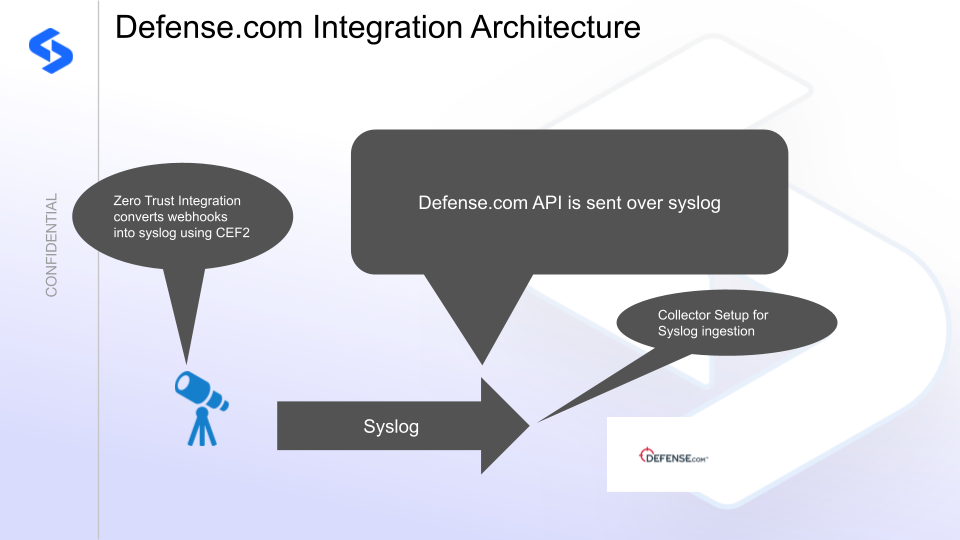
Integration Architecture
Solution Configuration in Defense.com and Defender Zero Trust
Prerequisites
- Installed Data Security Edition subscription product
- Eyeglass OS appliance version 15.5
- cat /etc/os-release
- License key for the Zero Trust API
- Defense.com, SIEM model required with on premise Collector
Features
- Sends CEF2 formatted alerts over syslog UDP to the on premise collector
Configuration in Defense.com Collector VM
- Deploy the on premise event collector with help from support
- Once deployed record the ip address of the collector host
- Done
Configuration Steps on Eyeglass Virtual Machine
High Level steps
- Create python location to run the application on the Eyeglass vm
- Create python main application script
- Create linux systemd service and set to auto start
- Create Zero Trust configuration in Defender
- Update the main script to customize with Defense.com python code
- Test the script is running as a service
- Create a test event in Defender to validate the alerts appear as indexed parsed events in Defense.com
Configuration Step by Step
- Login to the eyeglass VM as admin user
- Follow the steps below
Configure the Service start and python integration files
Configure the python packages and customize the Defense.com integration python code
- Customize the application code by downloading the python code from this link to download (right click download as)
- Open the python template file in a text editor. NOTE: make sure to only replace the yellow values (endpoint url for http ingestion of your Defense.com instance, the api token)
- Locate this section in the file, replace yellow highlights. Change the port if different from below.
- # === Defense.com Configuration ===DEFENSE_SYSLOG_HOST = "x.x.x.x" # <-- changeDEFENSE_SYSLOG_PORT = 5514 # UDP 5514
- Paste the updated script into the production file
- nano /opt/superna/cgi-bin/defense.py
- Open the file locally in Windows OS notepad and use control-A or select all the text.
- Paste the clipboard into the ssh terminal session with the open nano editor file
- save the file
- press control+x
- Answer yes to save and exit the nano editor
- Start the service and verify it is running
- systemctl start defense
- systemctl status -l defense
- Verify the service is started successfully and returns "active and running".
- If the service does not start do not proceed and double check the steps above are completed.
Configure Defender Zero Trust Webhooks
- The next step creates an Zero Trust Webhook URL.
- Configure Zero Trust endpoint in Integrations icon, Webhooks tab.
- Recommended Configuration: Only Critical and Major events and only the webhooks that set lockout or delayed lockout. Customers can customize based on specific requirements. The goal is to send findings versus a list of alarms that do not pinpoint a security incident.
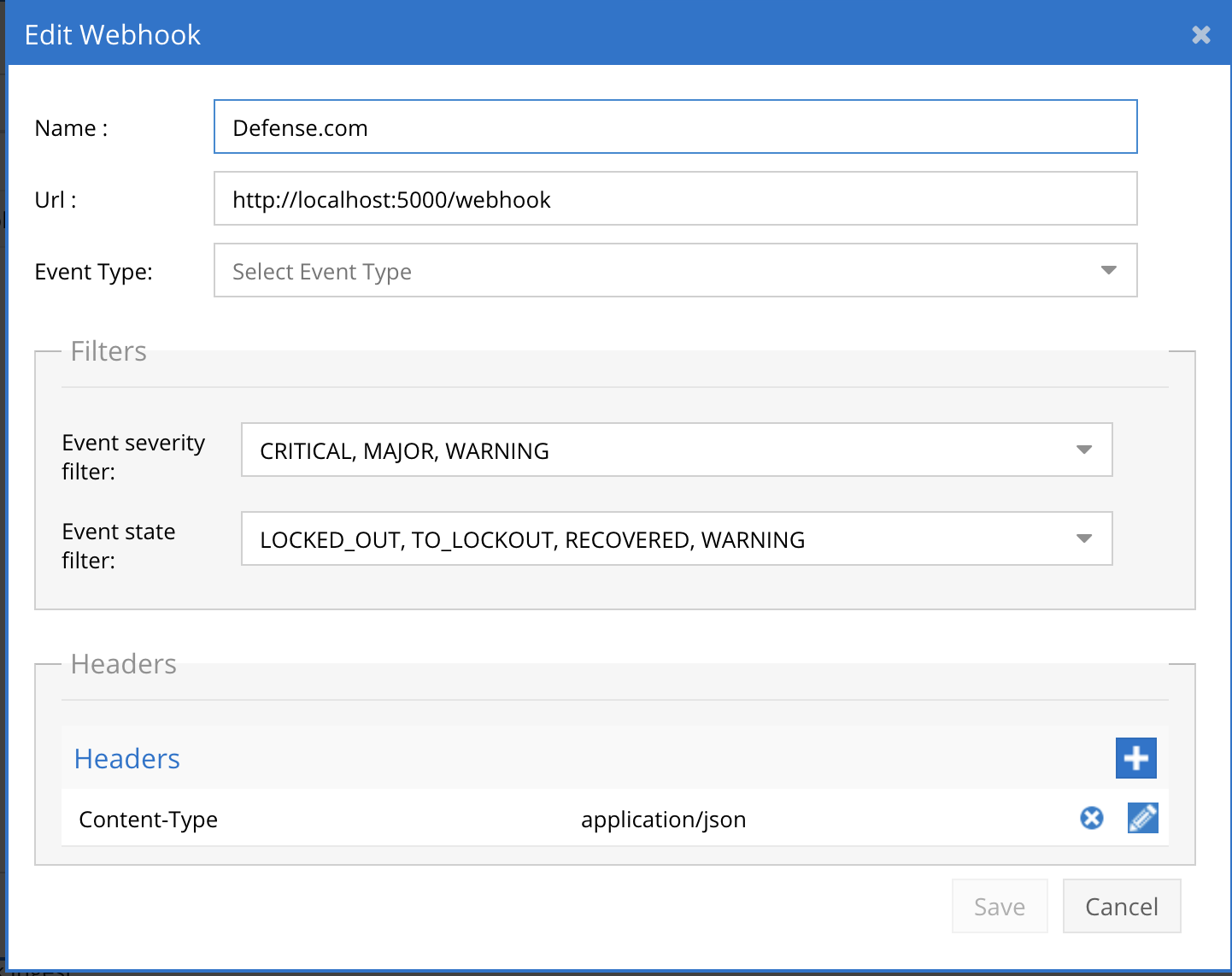
- The endpoint url above will use localhost and will send Webhooks to the application service listening on port 5000. URL to use in the configuration
- http://localhost:5000/webhook
- Add the Content-Type header with value of application/json as shown above to complete the webhook configuration.
- Click save to commit the configuration.
- Click save on the main Webhook configuration page
- Configure Zero Trust endpoint in Integrations icon, Webhooks tab.
- Test the configuration is working following the next section
How to test the Integration with Defense.com
- To test the integration follow these steps
- download this curl command template and open with a text editor
- Copy all the text
- ssh to the eyeglass vm as the admin user
- paste the entire cli command to the ssh prompt to send sample data to the running Zero Trust application. This will send test data directly to the application to be processed and sent to Defense.com.
- The output of a successfully processed webhook test will return this text in the ssh terminal
- done sending event to abssiem and check for http 200 and success count in response
- How to review the process logs from the web application
- sudo -s
- journalctl -f -u defense
- This allows you to view the logs generated by the application.
- To log to a file and review with nano showing only the most recent 250 lines.
- journalctl -f -n 250 -u defense > /tmp/ztwebhook.log
- nano /tmp/ztwebhook.log
- In the log below the response code from the Defense.com api call should show sending status code
- Done
Defense.com Administrator Integration Experience
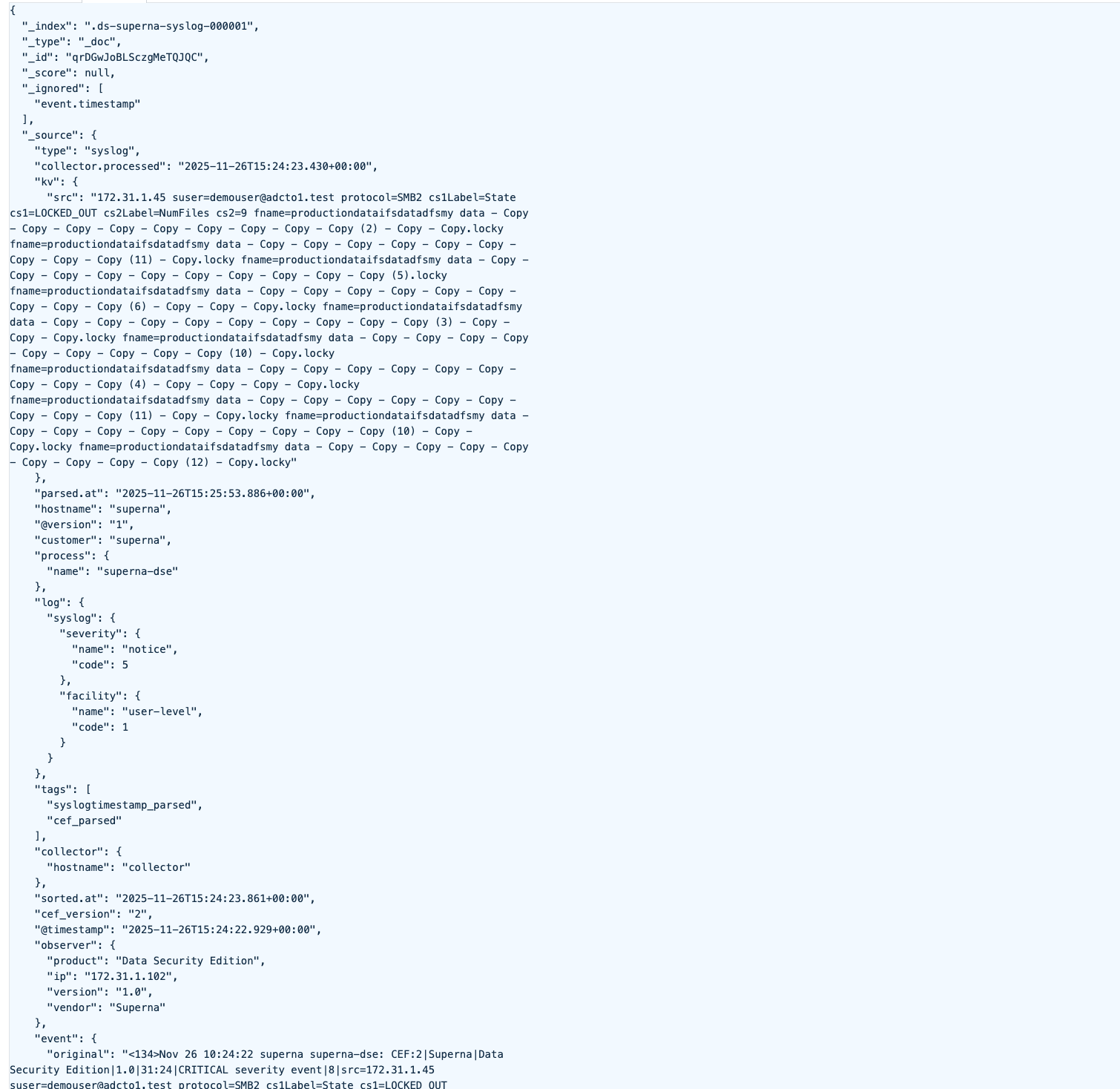
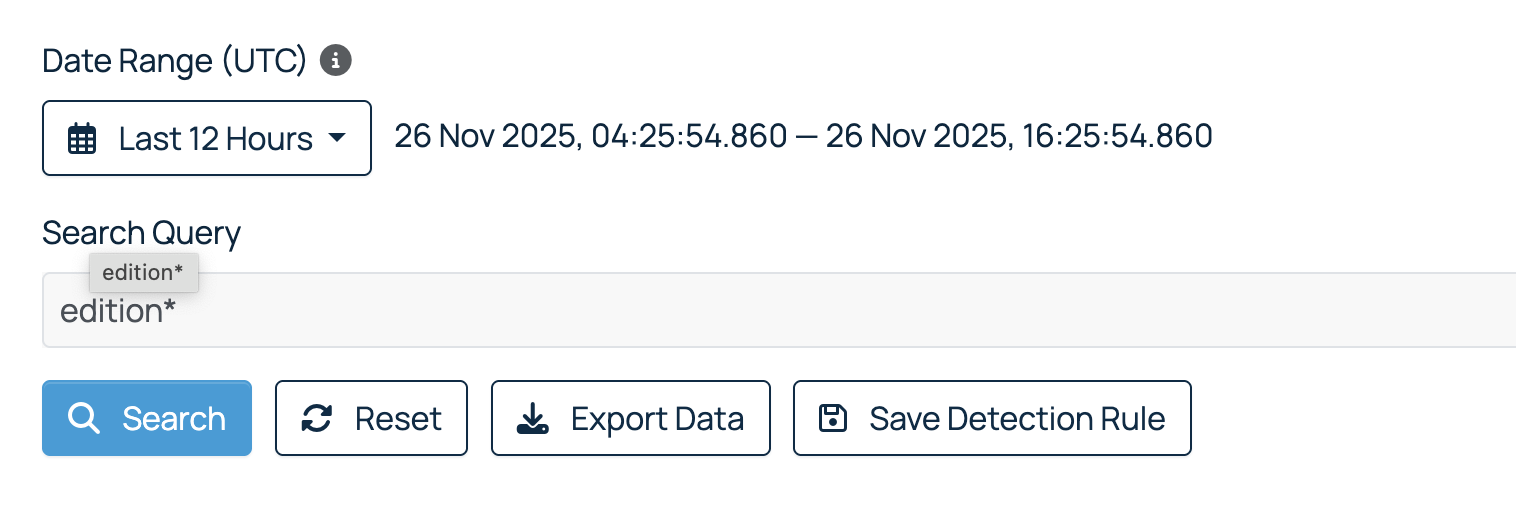
- Searching for Superna log messages
© Superna Inc